Staff & shifts
Adding a staff member and setting screen permissions
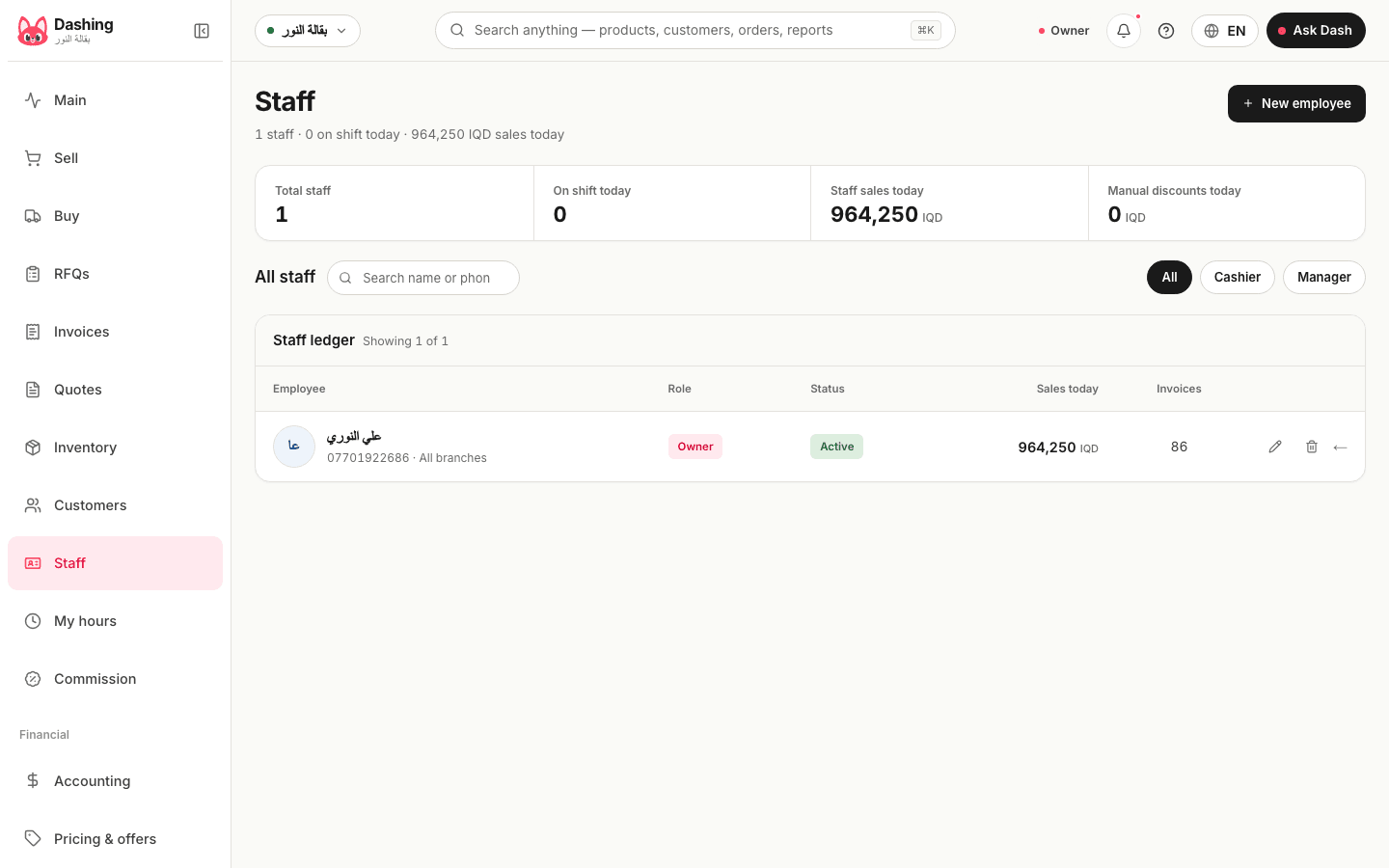
From the staff screen: "New employee" with name, role, login email and password, then "Screen permissions" per screen; what a cashier sees, and where actions are logged.
Verified against the product on 1 min read
Steps
- Open "Staff" and press "New employee".
- Enter the name, the "Role" ("Manager" or "Cashier"…), the branch, the "Login email" and "Password" (at least 8 characters), then "Save". Share the login details with them.
- Open "Permissions" on their page: "Screen permissions" lists every screen as "Screen enabled" or disabled. Turn off what is not theirs (reports, settings, inventory…), then "Save permissions".
- The sensitive permissions — discounts above the cap, credit-limit override, opening/closing a shift — grant only to people you trust; every use is written with a reason to the audit log.
- To stop a staff member who left: "Suspend" on their page (not delete); their record stays.
Notes
- Dash respects the same permissions: it does not answer a staff member about a screen they cannot see.
- The "Shift schedule" on the staff page sets their weekly shifts.
What the system does not do
It does not send an invitation email; you share the login details. And no payroll.
Common questions
- The employee forgot their password.
- From their page, "Reset password", then "Set password", and share it with them; they can change it after their first sign-in.
- Can a cashier delete an invoice or see the profit?
- Nobody deletes invoices. Profit and reports are screens granted by permission; the default cashier does not see them.
Was this page helpful?
In the same section
This page is also available in العربية · کوردی
Read also
Did not find what you needed? Message us on WhatsApp