Money & reports
Logging an expense with a photo of the receipt
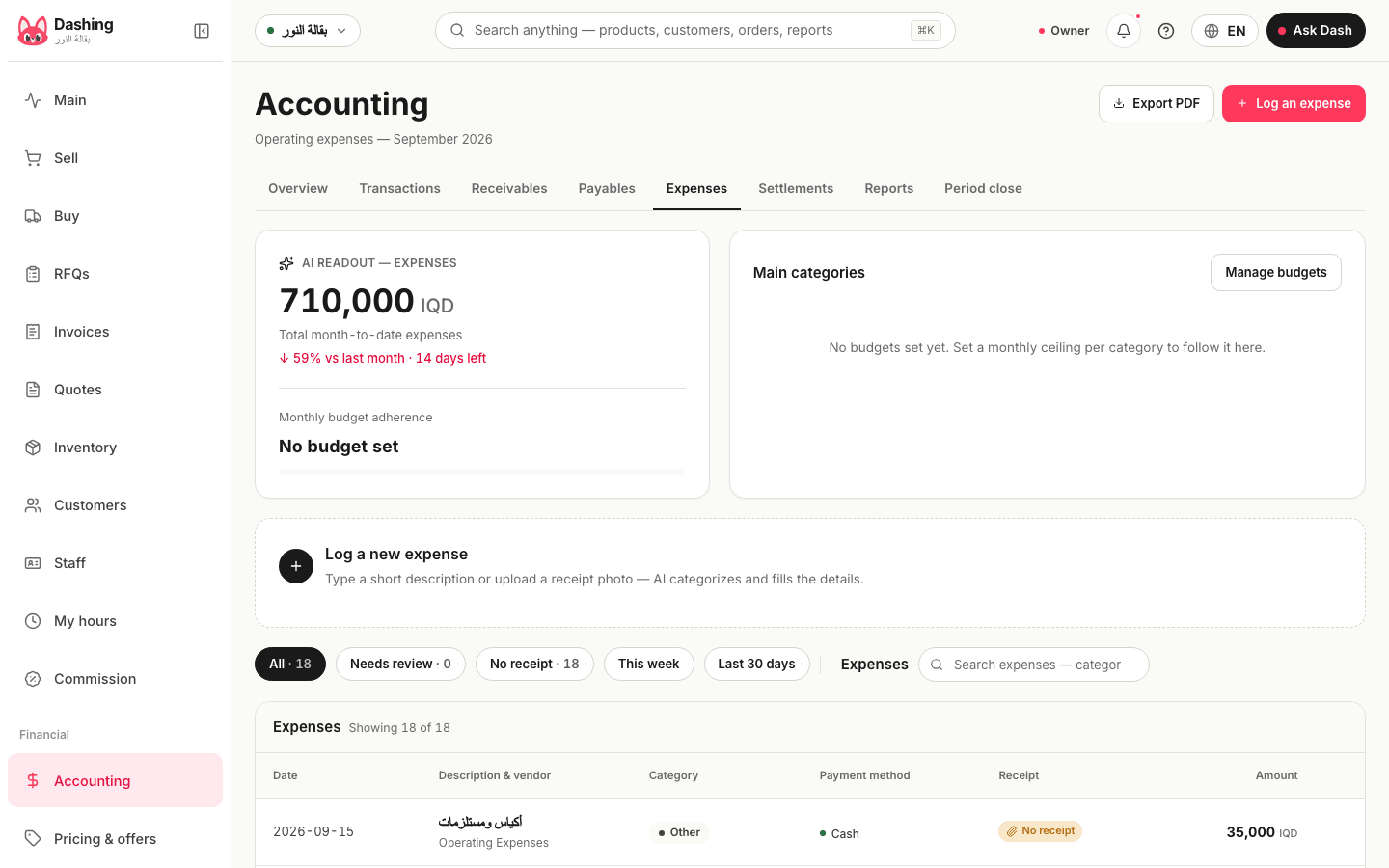
From the expenses screen: "Log expense" with amount, category, payment method and a receipt photo, categories and budgets, and how it shows in the income statement.
Verified against the product on 1 min read
Steps
- Open "Financial", then "Expenses", and press "Log expense".
- Enter the "Amount" and choose the "Category" (or "New category").
- Write the "Description (optional)" — to whom it was paid and why.
- Choose the "Payment method": "Cash" (from the shift's drawer), "Card", or "Transfer".
- "Receipt photo (optional)": "Attach / take photo" straight from the phone.
- Press "Save". The expense appears in the list and in the "Expense report" by category against its budget.
What happens in the books
The category's expense account is debited and the drawer or bank credited, in your active branch; it shows on the income statement at once.
What the system does not do
It does not read the amount from the receipt photo automatically, and it does not record salaries as a payroll system — they are logged as an expense under a "salaries" category.
Common questions
- I paid the expense from the cashier's drawer.
- Choose "Cash" and it is taken from the open shift's drawer so it shows in its count; do not record an extra cash-out for it.
- The category does not exist.
- Press "New category" and type the "Category name"; it then appears for every expense and can get a monthly budget from "Manage budgets".
Was this page helpful?
In the same section
- Closing a month, closing the year, and reopening eitherMonth-end close: "Lock" a reviewed month so nothing dated inside it is accepted; the year's "Close period" posts the closing entry; both reopen for corrections.
- Posting a journal entry by hand, and reversing one"New entry" on Transactions: an accrual, a correction or a move between accounts, balanced lines and a written reason; open a row for its lines; reverse one by hand.
- Reading the reports: income statement, balance sheet, aging, and taxWhere each report lives on the Financial screen and what it answers: income statement, balance sheet, cash flow, general ledger, sales, inventory, expenses, aging.
- Settlements: reviewing drawer closes and recording a depositThe Settlements screen: every branch's shift closes with their status, each shift's report, "Record deposit" to move cash to the bank, safe or owner, and reconciliation.
This page is also available in العربية · کوردی
Read also
Did not find what you needed? Message us on WhatsApp