From the notebook and Excel to a cashier system in a week
A day-by-day plan for moving a shop in Iraq from the notebook and Excel to Dashing: products, customers, old debts, first sale, shift and report, and what stays behind.
The Dashing team5 min read
What delays a shop owner most is the question: "and what do I do with everything in the notebook?" The answer: do not move everything; move the right things in the right order. This is a one-week plan we have run ourselves at Dashing (داشنك), with what actually imports from a file, what is entered by hand, and what stays in the notebook on purpose.
Before you start: one decision
Pick a switch-over day: the first of the month, or the first day after a stock count. Before it, the notebook is the truth; after it, the system is. The worst thing you can do is run both for a whole month "to be safe"; you end up with two copies that do not match.
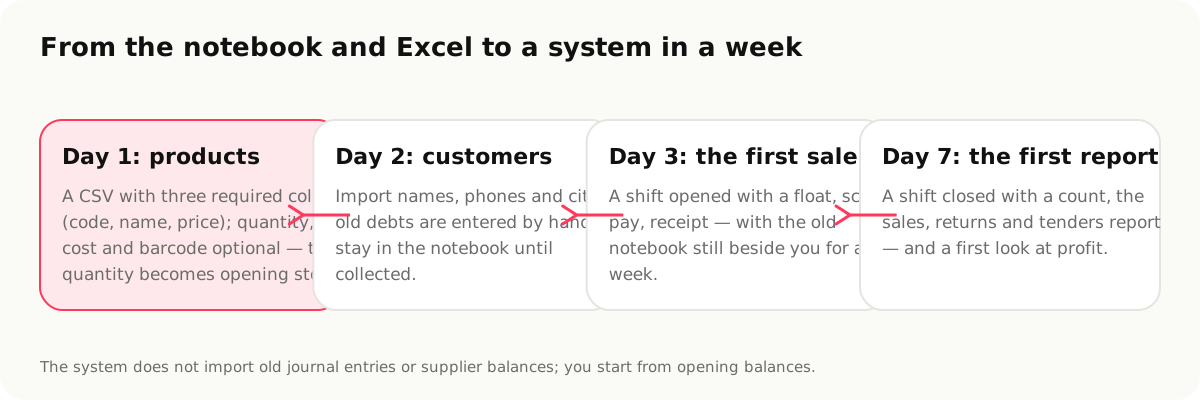
Day 1: products from a CSV file
Open the Excel you have (or make one) with three required columns: code, name and price, plus optional columns: cost, quantity and barcode. Dashing understands the common Arabic and English headers (name, price, quantity, barcode, code, الاسم, السعر, الكمية…) so you do not need to rename anything.
Save the file as CSV, then from the inventory page press "Import products" and choose the file. The system tries the import without saving and shows you: how many rows are ready, and how many have an error and why (a duplicate code, a missing price…). Fix them in Excel, upload again, then press "Import".
What happens to the quantity: it becomes opening stock in the main branch at the cost you wrote, with a balanced journal entry. That means your stock value appears on the balance sheet from day one.
Tips:
- Items without a barcode: leave the column empty and scan the barcode at the first receipt or the first sale.
- Carton and piece: import the item by the piece, then add the carton unit, its conversion and its barcode from the item page. Barcodes for a shop: EAN-13, in-store numbers and cartons has the details.
- Do not import a quantity you are not sure of; a quick count on day 6 is better.
Day 2: customers and suppliers
Import customers from a file: name, phone and city (and email if you have it). What does not import: the old balance. You have two options, and both are correct:
- Start with a clean book. Old debts are collected from the old notebook as they always were, and the system records only new ones. Simplest, and it does not distort the month's sales.
- A "previous balance" invoice per customer, dated the switch-over day, on credit, with one line. The statement is complete from day one, but the invoice counts as sales in the switch-over month; tell your accountant to treat it as opening balances.
Suppliers are added by hand (usually fewer than ten). Their old balances are not imported and should not be entered as a purchase order (receiving would add the stock a second time); settle them from the old notebook, and from the switch-over day record every purchase as a purchase order in the system.
Day 3: staff and permissions
Create an account for each staff member with their role: owner, accountant, cashier. A cashier does not see profit and does not change prices; if you want to allow a discount or a credit-limit override, grant that permission alone. Everything anyone does is written to a log that cannot be edited. And turn on "Blind count on shift close" in Settings if the shop has more than one cashier.
Day 4: the first sale, with the notebook beside you
Open a shift with the opening cash and sell the whole day from the system. Keep the notebook open next to you, not to write in it, but for reassurance. After the first ten invoices the cashier will notice that scanning is faster than writing, and will stop looking at the notebook on their own.
The receipt prints from the invoice page on an 80 mm thermal printer, or goes as a link over WhatsApp. Setting up a till in Iraq says which hardware is enough.
Day 5: new debts from the system
From today, every credit sale is recorded under the customer's name and against their credit limit, and every payment is allocated to their oldest invoices. Send the first WhatsApp statement to a customer you trust and ask: is this clearer than the notebook? Customer debts over WhatsApp explains the whole loop.
Day 6: a quick count
Create a cycle count for the items whose quantity you were not sure of. The count does not stop selling; you count, enter the numbers, and the difference is booked after your approval. Now the stock in the system is your real stock.
Day 7: the first report
Close the shift with a count. Open the shift report: sales, returns, tender types, the drawer variance. Then open the profit view: the first week's profit will not be exact if costs were missing in the import file; complete the costs from the item pages during the second week, and from day 14 the profit is a number you can trust.
What does not import: plainly
- Old journal entries: not imported. You start from opening balances (stock from the product file, the rest per the two options above).
- Supplier balances: not imported from a file.
- Old invoices: not imported; refer to the old notebook.
- Photos: added from the item page, one by one.
Sources
- Product and customer import in Dashing, https://dashing.krd/en/features/inventory (accessed 2026-09-14)
- Permissions and shifts, https://dashing.krd/en/features/staff (2026-09-14)
This article is also available in العربية · کوردی
In the product
- InventoryInventory software for shops in Iraq: branches, batches, expiry, units
- Customers and receivablesCustomer debts in a POS: credit limits, aging, a statement on WhatsApp
- Staff and shiftsStaff permissions, drawer close and the shift report in a POS
- Free planFree accounting and cashier software for shops in Iraq