Selling
Your first sale at the cashier: scan, quantity, discount, and charge
Selling from the fast mode: scan or type the item, change quantity or price with the F keys, hold a sale and resume it, then Charge, with the real button names.
Verified against the product on 2 min read
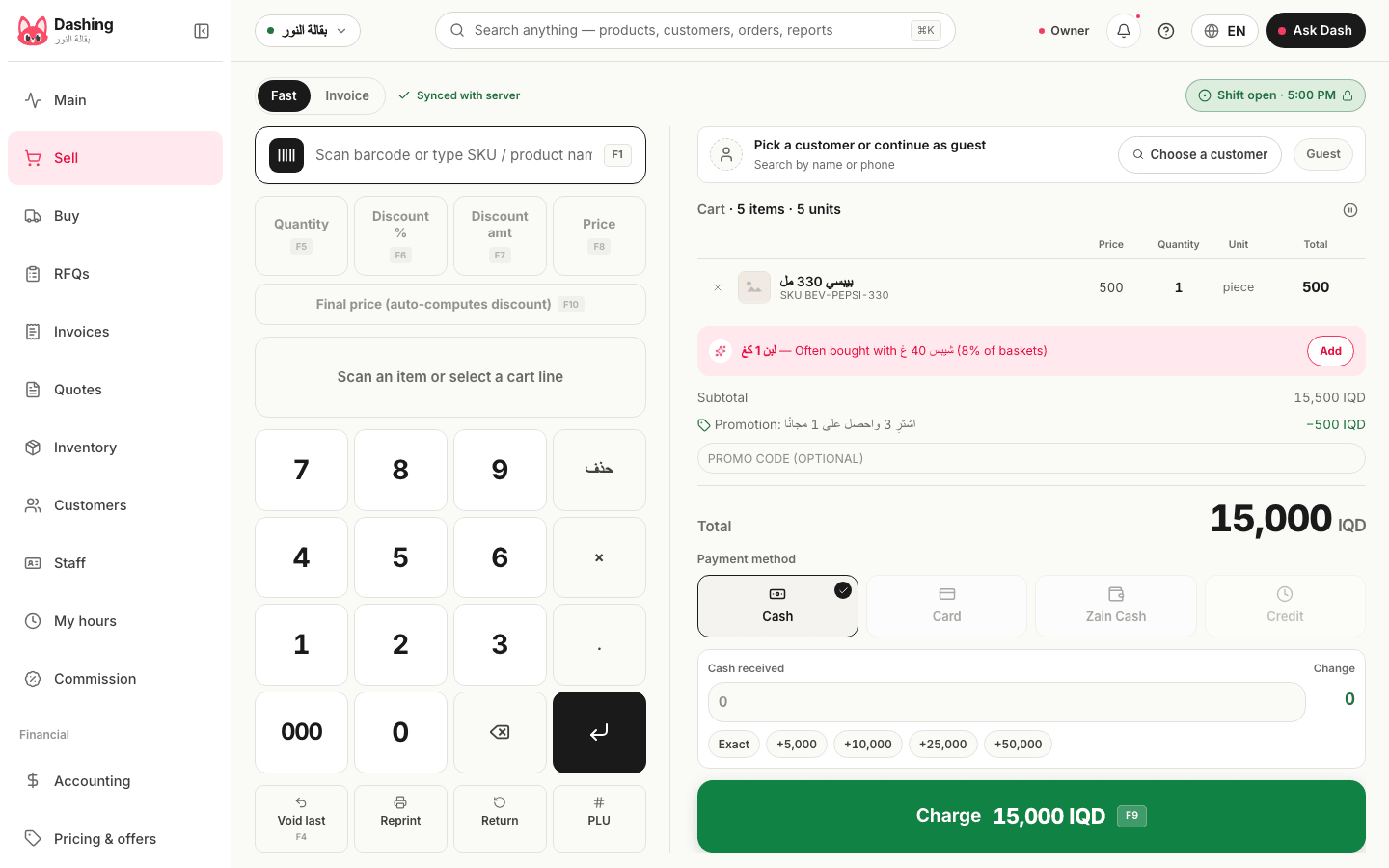
The fast mode is built for hands on the keyboard: scanning adds, digits edit, and Charge finishes. Open a shift first if none is open (open a shift).
Steps
- Open the "Sell" screen. At the top is the mode switch: "Fast" for a queue, "Invoice" for a structured sale with a customer and lines.
- Put the cursor in the "Scan barcode or type SKU / product name" field (F1 always brings you back to it) and scan the item; it appears in the "Cart" at once. For items without a barcode, type the first letters of the name and pick from the list.
- To edit a line: select it in the cart, then F5 for quantity, F6 for "Discount %", F7 for "Discount amt", F8 for "Final price", type the value and press Enter. F4 removes the last item ("Void last").
- To attach the customer (for a credit sale or loyalty points): F2 or "Add customer", and search by phone or name.
- If the customer steps away: "Hold" keeps the sale under "Held sales", and you reopen it later from the same button.
- Press "Charge" (F9), pick the payment method, enter "Cash received" for cash so the change shows, and confirm. "Sale completed" appears and the receipt prints or is sent according to your setting.
What happens in the books
Every confirmed sale is booked at once: the drawer (or the card account) debited, sales credited, and the cost of goods taken out of stock in the base unit. An invoice is never deleted after confirmation; a return is a reversing entry (returns).
What the system does not do
- It does not open a physical cash drawer, and it does not read the weight from a scale — the weight is typed.
- It does not accept dollars as a tender in the fast mode; convert the amount to dinars at your rate.
Common questions
- The item was not recognised when scanned — what do I do?
- "Product not found" appears. Add the item once from the inventory screen with its barcode (or give it an in-store barcode), then scan again.
- How do I sell by the carton instead of the piece?
- Scan the carton's barcode if it is defined as a unit of the item, or select the line and switch the unit in the cart; stock is deducted in pieces automatically.
Was this page helpful?
In the same section
- Creating an offer or promo code and applying it at the tillFrom pricing & offers: "New offer" as a percentage, fixed amount or buy-get, with a promo code, period and minimum cart, then the code at checkout.
- Payment methods at the till: cash, card, Zain Cash, credit, and splitWhat each option at Charge means and where the money is booked: cash in the drawer, card and transfer in a bank account, credit on the customer, and splitting.
- Printing the receipt, saving it as a PDF, or sending it on WhatsAppFrom the invoice page: "Save & print" for an 80 mm thermal printer, "Print PDF only", or "Send" on WhatsApp with a link the customer opens on their phone.
- Returns with or without a receipt, in cash or as creditRecording a returned item: by finding the original invoice or without it, choosing the units returned, refunding in cash or as credit, and the effect on stock.
This page is also available in العربية · کوردی
Read also
Did not find what you needed? Message us on WhatsApp