Inventory
Adding a new product: name, price, barcode and minimum stock
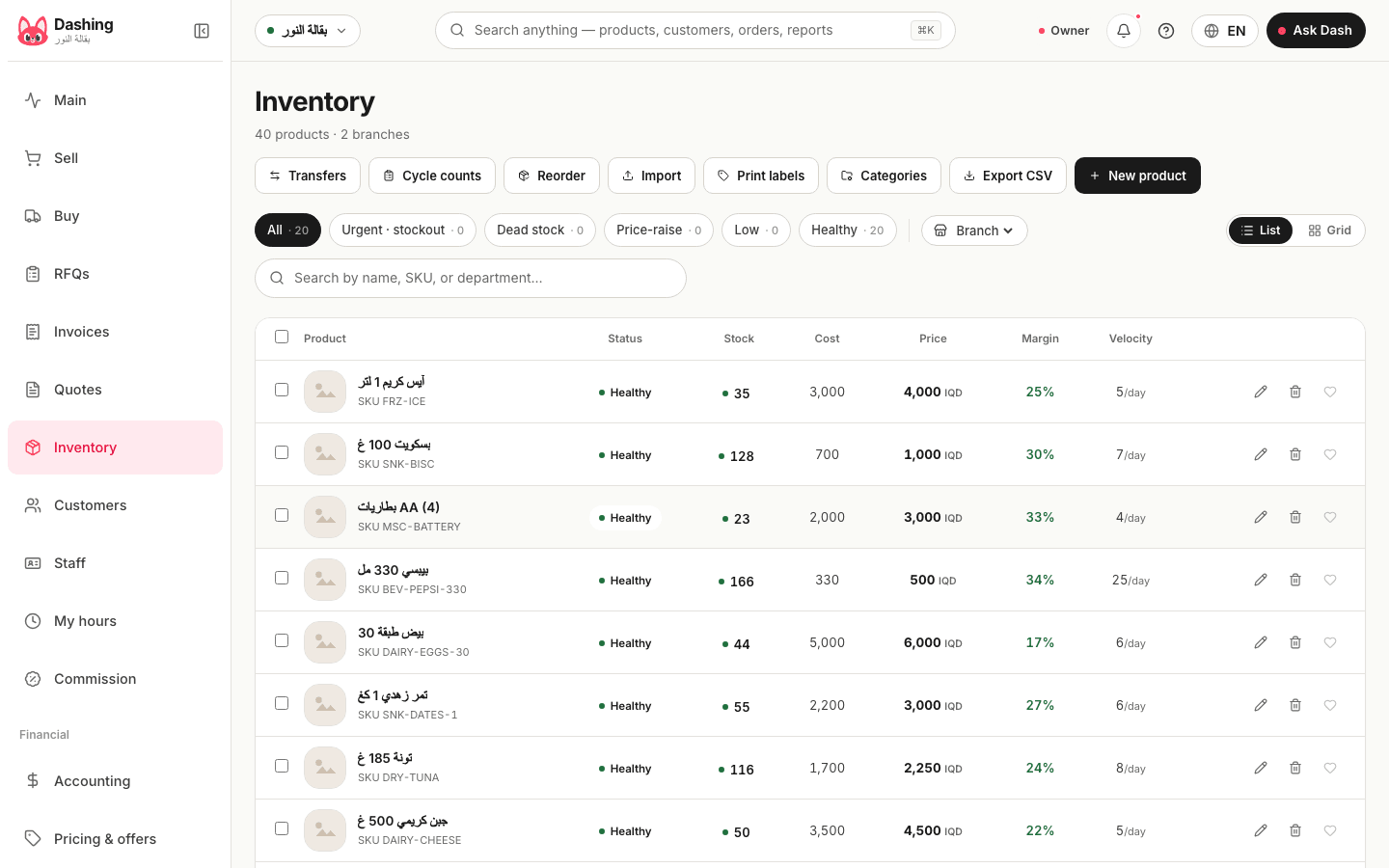
From the inventory screen: "New product" with name, sell price, cost, barcode, minimum stock, category and image, and when to enable variants, serials or batches.
Verified against the product on 1 min read
Steps
- Open "Inventory" and press "New product".
- Enter the "Product name" as it should appear on the receipt, the "Sell price" in dinars, and the "Cost price" (needed to compute profit).
- Scan or type the "Barcode" if the pack has one. Leave it empty for loose or local items.
- Set the "Min": when stock falls below it, the item appears in the reorder suggestions and the home-screen card.
- Pick the "Category" (or create one from "New category"), and upload an image from "Product image" if you want it on the till grid.
- For clothing and shoes: enable "This product has variants" and "Add variant" for each size/colour with its barcode. For devices: enable the serial/IMEI. For medicines and food: enable batches and expiry. Leave them off for the rest.
- Press "Save product". The quantity starts at zero until you enter it with a stock adjustment or by receiving a purchase order.
Notes
- Later price changes save immediately from the item page and are written to the audit log under the name of whoever changed them.
- The product itself is available in every branch; the quantity is per branch.
What the system does not do
It does not fetch the name or image from the barcode automatically (no public product database).
Common questions
- The item has no factory barcode.
- Leave "Barcode" empty; an item code (SKU) is created for search, and you can print a barcode label for it from the item page ([print labels](/help/print-barcode-labels)).
- How do I enter the current quantity?
- From the item page, "Adjust stock" with the reason "Opening quantity" and the cost, or with a cycle count after adding every item.
Was this page helpful?
In the same section
- Adjusting one item's quantity: restock, damage, correction, or openingFrom the item page: "Adjust stock" with a reason; Restock, Damage / loss, Count correction, Opening quantity, then "Apply"; every adjustment is booked and logged.
- Categories: creating them and categorising items in bulkAdding a category from "Manage categories" or while creating a product, categorising several items at once, and where categories show at the till and in reports.
- Cycle counts: counting a shelf without stopping salesCreating a "New count", entering the "Counted quantity" per item, reviewing "Variance" and "Variance value", then "Commit count"; differences are booked automatically.
- Importing products from a CSV file (with opening quantities)A CSV with code, name and price (required) plus cost, quantity and barcode (optional), then "Import products": a dry run first; per-row errors never stop the rest.
- Printing barcode labels for itemsFrom the inventory screen: "Print labels", search the items and add them with the number of labels, then "Print" on a label printer or label sheets.
- Reorder suggestions and turning them into purchase ordersWhen an item falls below its minimum it appears in "Reorder suggestions"; review quantity and supplier, select, and "Create purchase orders" for a draft per supplier.
This page is also available in العربية · کوردی
Read also
Did not find what you needed? Message us on WhatsApp